
3.6 KiB
This guide helps to set up audio redirection in OneClickDesktop server with pulseaudio. The idea is to mimic a sound card and redirect sound signal such that you can watch videos and listen to songs on your server. Note: This guide only works for Ubuntu 18/20 and Debian 10, in XRDP mode. It will NOT work on CentOS. It will NOT work in VNC mode.
Before starting, this tutorial assumes that you already have OneClickDesktop server installed and running. It also assumes that you have a non-root user for the desktop. The audio will NOT work for the root user.
If you haven't yet created a non-root user, you can run the following two commands in SSH to create a non-root, sudo user.
adduser your_username
usermod -aG sudo your_username
1. Build pulseaudio and pulseaudio-xrdp
Run the following command to build pulseaudio and pulseaudio-xrdp.
wget https://raw.githubusercontent.com/Har-Kuun/OneClickDesktop/master/plugins/Audio/AudioRedirectionSetup.sh && sudo bash AudioRedirectionSetup.sh
After running the script, please reboot your server.
2. Set up volume control in desktop
Because of a known glitch of pulseaudio in newer versions of Ubuntu and Debian, there are a couple of post-installation steps required before hearing sound from your server.
Ubuntu 18
Ubuntu 18 is the easiest. Simply log into your server desktop with a non-root user, and you should be ready to use audio out-of-the-box.
Ubuntu 20
-
Log into your server desktop with a non-root user.
-
Check your volume control.
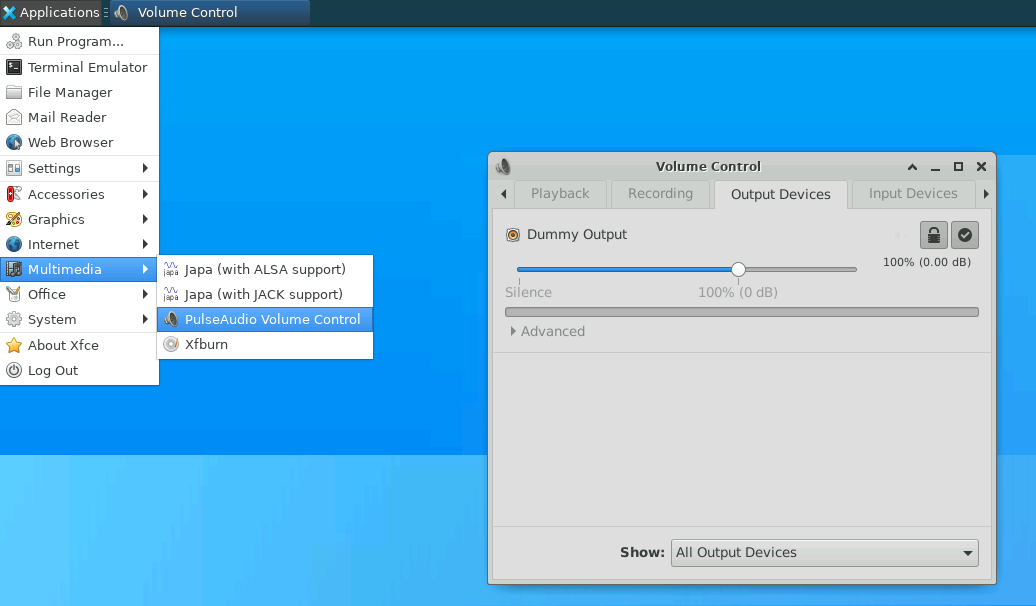
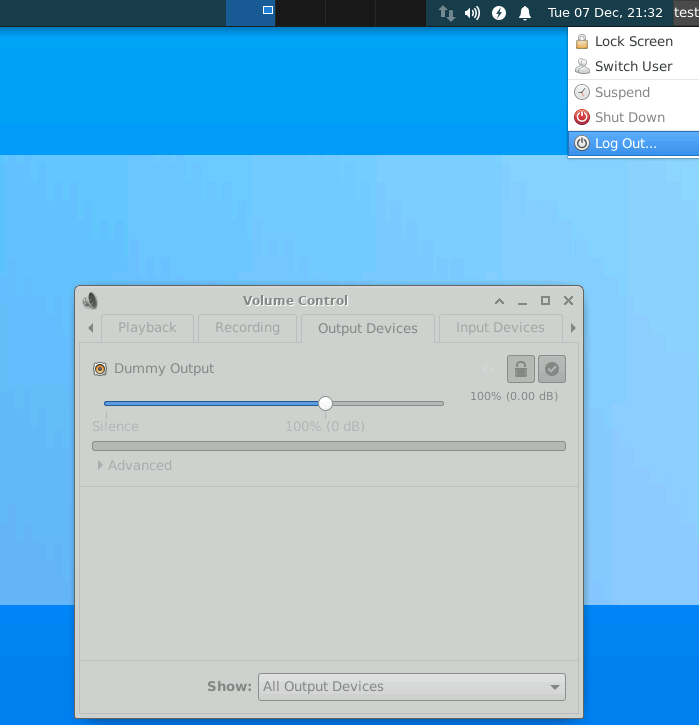
- If it only shows Dummy Output like in the image above, log out from your desktop and re-login. Logout and log in from SSH will NOT work.
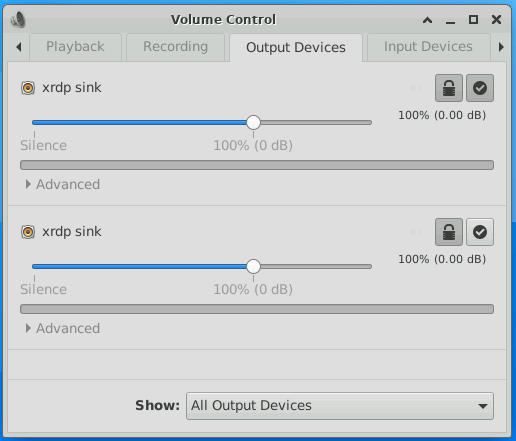
- Log into the desktop with the same user. Check your volume control again, and it should have xrdp sink now, and you are now ready to use audio.
If it still does not work, please follow steps in the Debian 10 section.
Debian 10
-
Log into your server desktop with a non-root user.
-
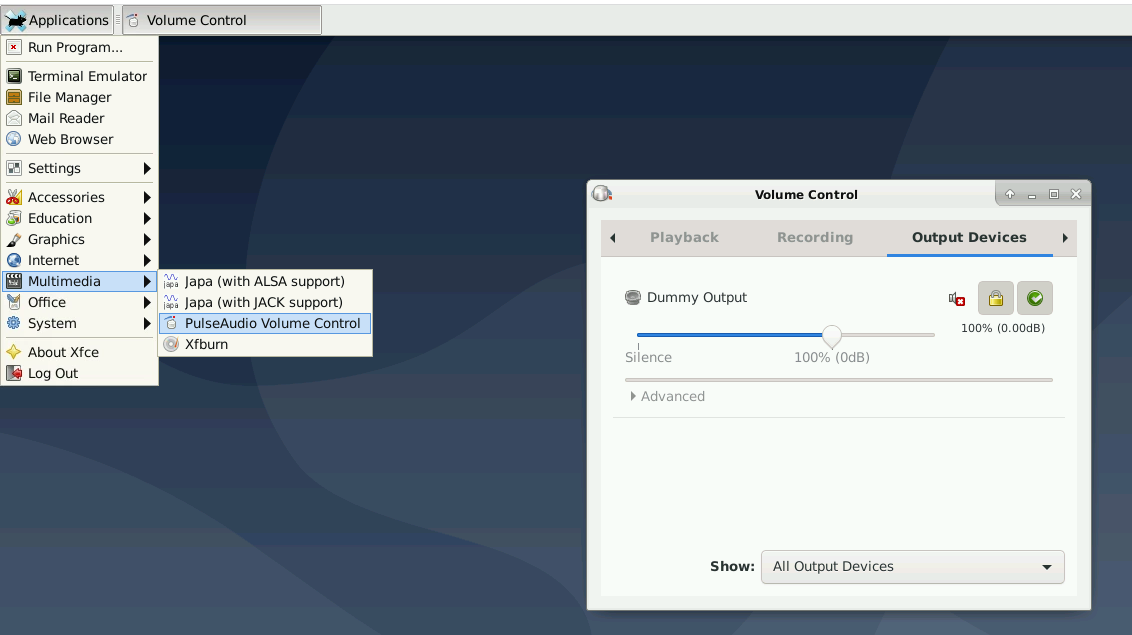
Check your volume control. It should only show Dummy Output like in the image below.
- Bring up a terminal within your desktop (SSH will NOT work), and run the following command.
pulseaudio -k && pulseaudio
It is essential that you run this command in a single line, such that it produces an internal error, forcing itself to stop. You should see outputs similar to below.
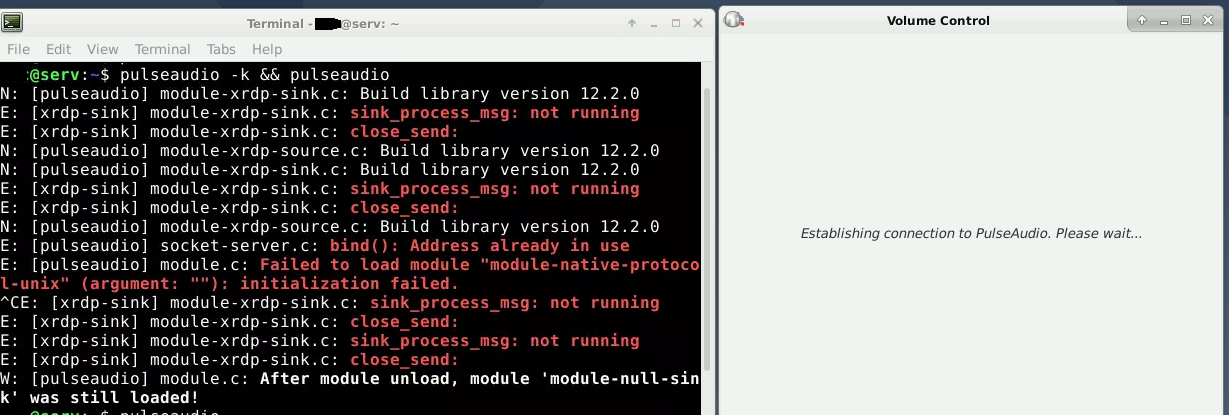
Then press CTRL+C to exit to the terminal.
- Run the following command to start pulseaudio in the background.
pulseaudio &
Then press CTRL+C to exit to the terminal.
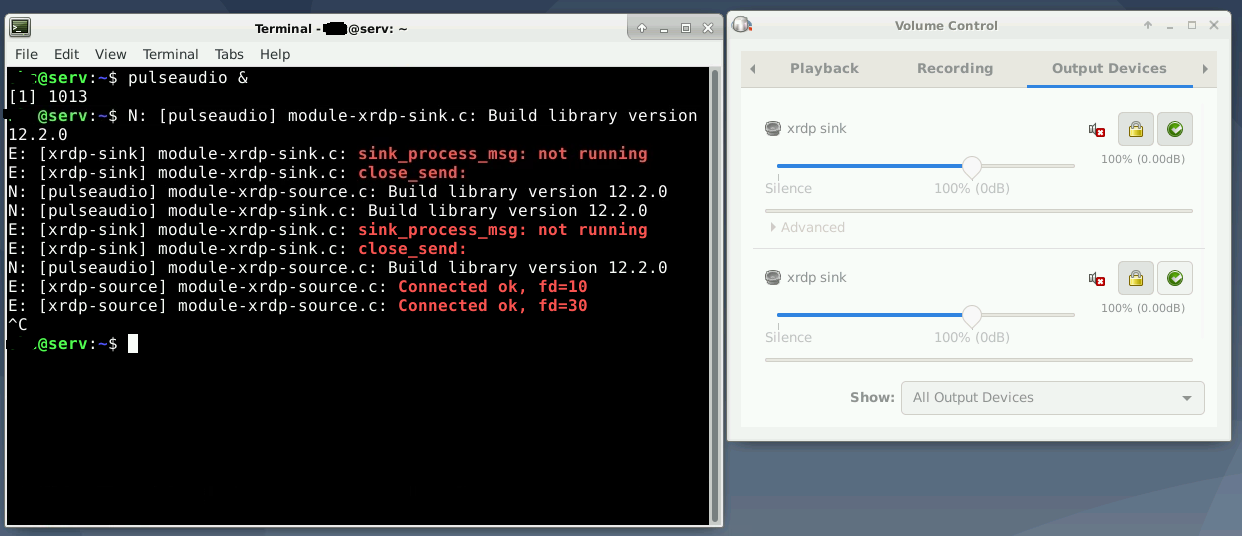
You should now see xrdp sink in your volume control now, indicating that you have sound.
中文详细教程请看这里:https://qing.su/article/pulseaudio-audio-redirection-oneclickdesktop.html
Please report any issue that you encounter during the Audio redirection setup.