mirror of
https://github.com/harry0703/MoneyPrinterTurbo.git
synced 2026-02-26 02:47:22 +08:00

134 lines
3.5 KiB
Markdown
134 lines
3.5 KiB
Markdown
## Installation & Deployment 📥
|
|
|
|
Simply provide a <b>topic</b> or <b>keyword</b> for a video, and it will automatically generate the video copy, video
|
|
materials, video subtitles, and video background music before synthesizing a high-definition short video.
|
|
|
|
### WebUI
|
|
|
|

|
|
|
|
### API Interface
|
|
|
|

|
|
|
|
- Try to avoid using **Chinese paths** to prevent unpredictable issues
|
|
- Ensure your **network** is stable, meaning you can access foreign websites normally
|
|
|
|
#### ① Clone the Project
|
|
|
|
```shell
|
|
git clone https://github.com/harry0703/MoneyPrinterTurbo.git
|
|
```
|
|
|
|
#### ② Modify the Configuration File
|
|
|
|
- Copy the `config.example.toml` file and rename it to `config.toml`
|
|
- Follow the instructions in the `config.toml` file to configure `pexels_api_keys` and `llm_provider`, and according to
|
|
the llm_provider's service provider, set up the corresponding API Key
|
|
|
|
#### ③ Configure Large Language Models (LLM)
|
|
|
|
- To use `GPT-4.0` or `GPT-3.5`, you need an `API Key` from `OpenAI`. If you don't have one, you can set `llm_provider`
|
|
to `g4f` (a free-to-use GPT library https://github.com/xtekky/gpt4free)
|
|
|
|
### Docker Deployment 🐳
|
|
|
|
#### ① Launch the Docker Container
|
|
|
|
If you haven't installed Docker, please install it first https://www.docker.com/products/docker-desktop/
|
|
If you are using a Windows system, please refer to Microsoft's documentation:
|
|
|
|
1. https://learn.microsoft.com/en-us/windows/wsl/install
|
|
2. https://learn.microsoft.com/en-us/windows/wsl/tutorials/wsl-containers
|
|
|
|
```shell
|
|
cd MoneyPrinterTurbo
|
|
docker-compose up
|
|
```
|
|
|
|
#### ② Access the Web Interface
|
|
|
|
Open your browser and visit http://0.0.0.0:8501
|
|
|
|
#### ③ Access the API Interface
|
|
|
|
Open your browser and visit http://0.0.0.0:8080/docs Or http://0.0.0.0:8080/redoc
|
|
|
|
### Manual Deployment 📦
|
|
|
|
#### ① Create a Python Virtual Environment
|
|
|
|
It is recommended to create a Python virtual environment
|
|
using [conda](https://conda.io/projects/conda/en/latest/user-guide/install/index.html)
|
|
|
|
```shell
|
|
git clone https://github.com/harry0703/MoneyPrinterTurbo.git
|
|
cd MoneyPrinterTurbo
|
|
conda create -n MoneyPrinterTurbo python=3.10
|
|
conda activate MoneyPrinterTurbo
|
|
pip install -r requirements.txt
|
|
```
|
|
|
|
#### ② Install ImageMagick
|
|
|
|
###### Windows:
|
|
|
|
- Download https://imagemagick.org/archive/binaries/ImageMagick-7.1.1-29-Q16-x64-static.exe
|
|
- Install the downloaded ImageMagick, **do not change the installation path**
|
|
- Modify the `config.toml` configuration file, set `imagemagick_path` to your actual installation path (if you didn't
|
|
change the path during installation, just uncomment it)
|
|
|
|
###### MacOS:
|
|
|
|
```shell
|
|
brew install imagemagick
|
|
```
|
|
|
|
###### Ubuntu
|
|
|
|
```shell
|
|
sudo apt-get install imagemagick
|
|
```
|
|
|
|
###### CentOS
|
|
|
|
```shell
|
|
sudo yum install ImageMagick
|
|
```
|
|
|
|
#### ③ Launch the Web Interface 🌐
|
|
|
|
Note that you need to execute the following commands in the `root directory` of the MoneyPrinterTurbo project
|
|
|
|
###### Windows
|
|
|
|
```bat
|
|
conda activate MoneyPrinterTurbo
|
|
webui.bat
|
|
```
|
|
|
|
###### MacOS or Linux
|
|
|
|
```shell
|
|
conda activate MoneyPrinterTurbo
|
|
sh webui.sh
|
|
```
|
|
|
|
After launching, the browser will open automatically
|
|
|
|
#### ④ Launch the API Service 🚀
|
|
|
|
```shell
|
|
python main.py
|
|
```
|
|
|
|
After launching, you can view the `API documentation` at http://127.0.0.1:8080/docs and directly test the interface
|
|
online for a quick experience.
|
|
|
|
## License 📝
|
|
|
|
Click to view the [`LICENSE`](LICENSE) file
|
|
|
|
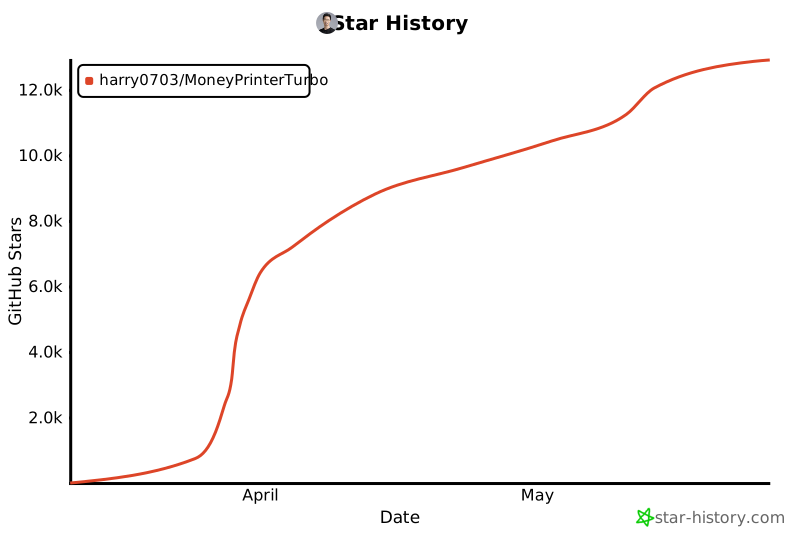
## Star History
|
|
|
|
[](https://star-history.com/#harry0703/MoneyPrinterTurbo&Date) |